A Ukrainian business that takes cash or card payments from customers has to issue fiscal receipts. Many choose Checkbox, a software cash register (PRRO) that runs in the cloud, so no hardware register is needed. Odoo Community knows nothing about PRRO, so every receipt is typed twice: once in Odoo, once in the Checkbox cabinet. This guide shows how to issue Checkbox receipts straight from Odoo 18, 19 or 20 with the Checkbox Fiscal Receipts add-on by KVS soft.
What the add-on does
- A cash or card receipt from a posted invoice in one click.
- A receipt for every confirmed online payment, for example through LiqPay or plata by mono.
- A receipt for every paid order in the Point of Sale.
- Return receipts from credit notes and POS refunds, linked to the original receipt.
- Shifts open before the first receipt of the day and close at night with the Z report. X reports and service cash in and out are buttons on the cash register.
- The fiscal number and a link to the receipt are posted in the document's chatter, and the receipt can be e-mailed to the customer.
Before you start
- Odoo Community 18, 19 or 20 with Invoicing. For the Point of Sale, the POS app.
- A Checkbox account with a cash register: you need its license key and the cashier's PIN code (or login and password).
- The Checkbox Fiscal Receipts add-on from the Odoo Apps Store for your Odoo version.
Step 1. Add the cash register
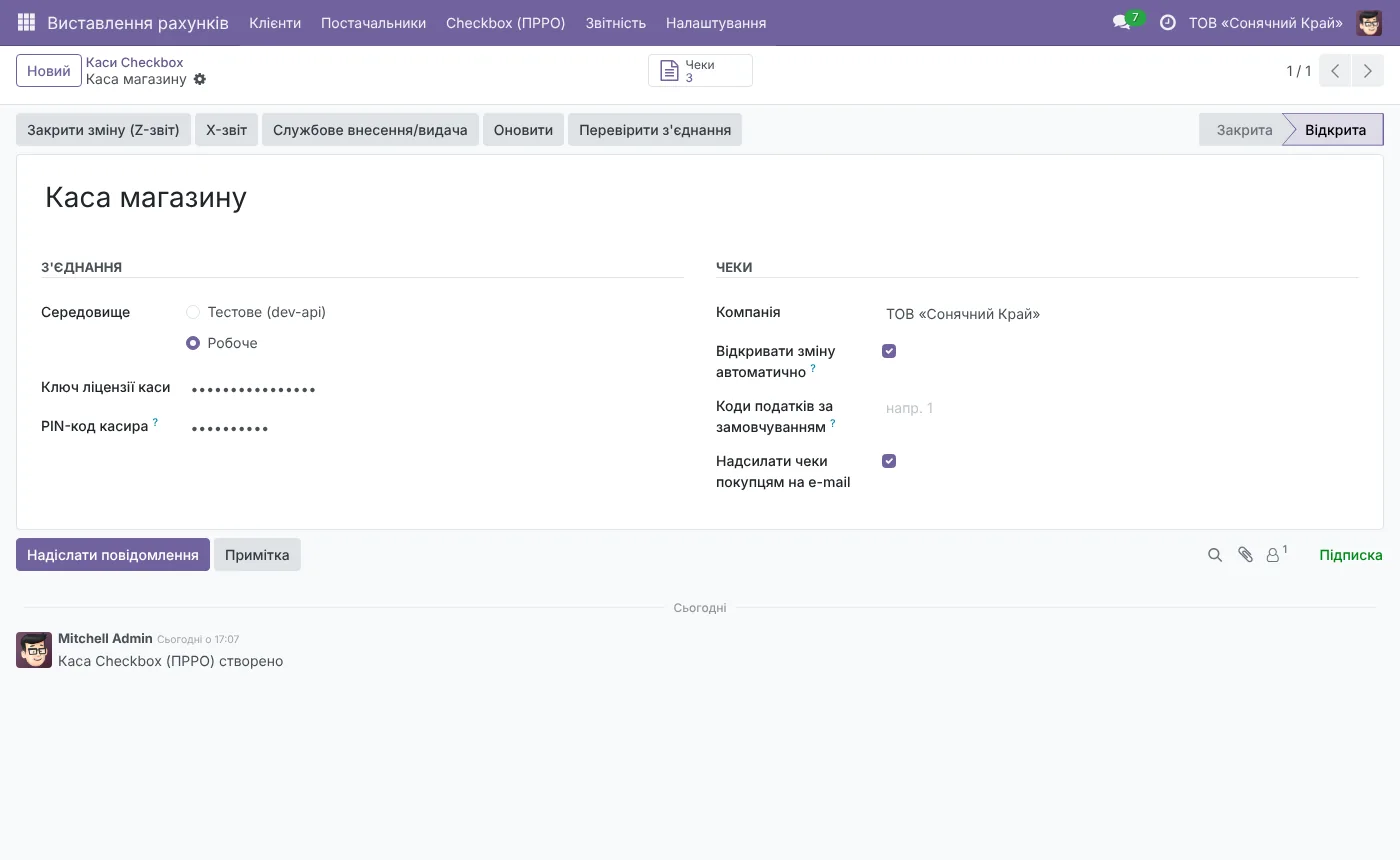
Open Invoicing → Checkbox (PRRO) → Cash registers and create a register. Enter the license key and the cashier PIN from the Checkbox cabinet. Start with the "Test (dev-api)" environment.
Step 2. Check the connection and open a shift
Click "Test connection", then open a shift. With "Open the shift automatically" turned on, Odoo opens it by itself before the first receipt of the day, and closes it at night with the Z report.
Step 3. Set the tax codes
Receipts carry Checkbox tax codes. Open Invoicing → Configuration → Taxes and fill the "Checkbox tax code" on your sales taxes, using the codes from Settings → Tax rates in your Checkbox account. If the company is not a VAT payer, leave the default tax codes on the register empty.
Step 4. Choose where receipts come from
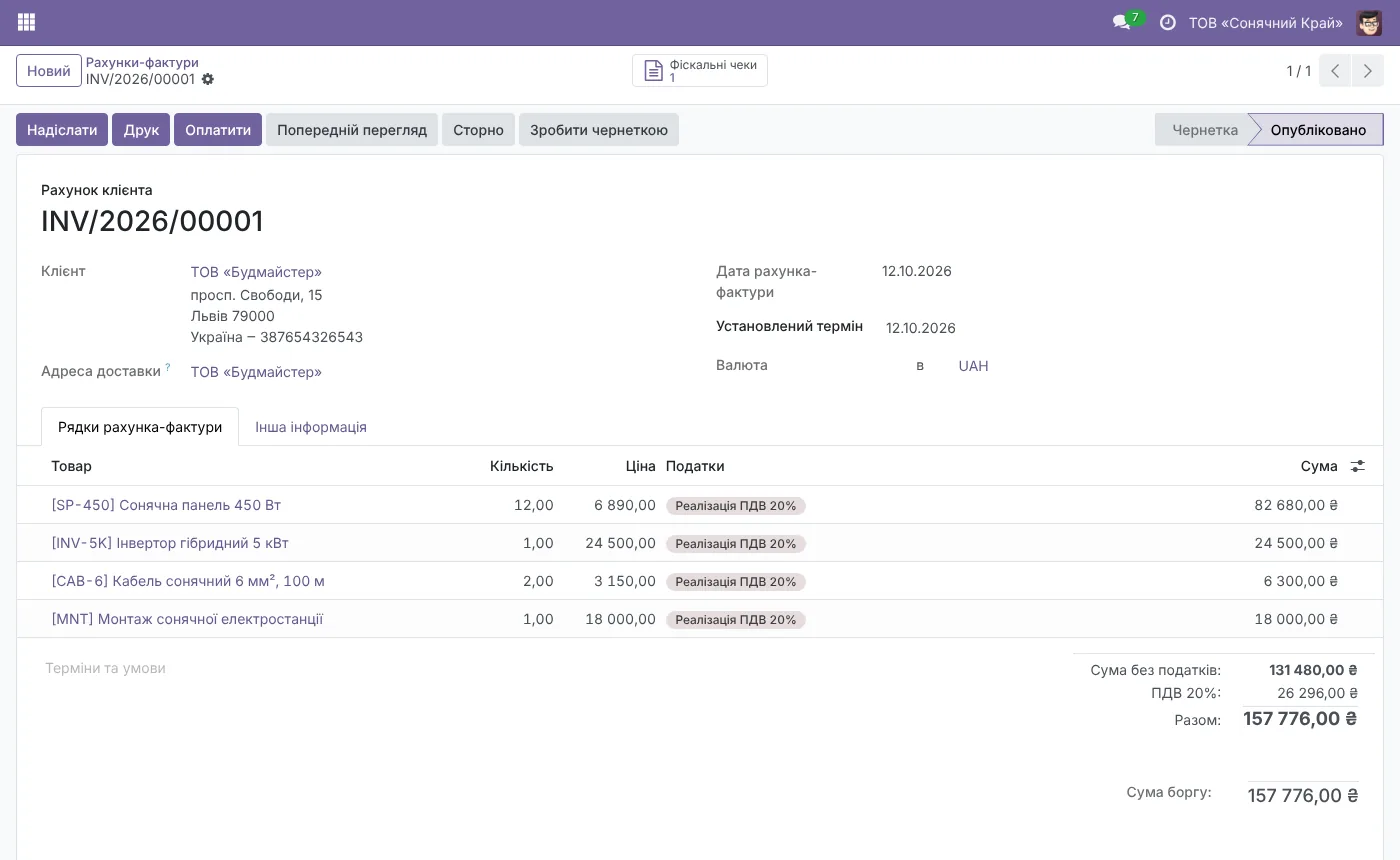
- Invoices. A posted invoice gets the "Receipt: cash" and "Receipt: card" buttons. A credit note issues a return receipt.
- Online payments. Choose the cash register in the "Fiscalize with Checkbox" field of the payment provider, and every confirmed payment gets its receipt.
- Point of Sale. The POS part installs itself together with the POS app. Choose the register in the point of sale settings, and every paid order is fiscalized.
When Checkbox is unreachable
A receipt that could not be sent waits in a queue and is resent every 5 minutes. Odoo sends its own receipt id to Checkbox, so a retry can never fiscalize the same sale twice. The list of fiscal receipts shows each receipt with its document, total, fiscal number and state.

Price
Checkbox Fiscal Receipts costs $159, a one-time purchase on the Odoo Apps Store for your Odoo version. If you also need Nova Poshta and LiqPay or monobank payments, the Ukrainian localization suite at $248 includes all of them.
Need an invoice for a bank transfer or help with the setup? Write to us.